

Download Clipboard History – free clipboard manager for Windows, macOS, Android & iOS
Overview
Clipboard History is a lightweight yet powerful utility that captures everything you copy – text snippets, URLs, images, and even formatted documents – and stores them in a searchable history that survives system restarts. Whether you spend most of your day drafting emails, assembling reports, or juggling multiple research sources, the ability to retrieve a previously copied item without scrolling back through endless tabs can save precious minutes and reduce frustration. The application runs quietly in the background, automatically logging each clipboard event and presenting a clean, intuitive interface that lets you scroll through, filter, and paste previous entries with a single click or keyboard shortcut.
Because the history is persisted to disk, you can power down your computer, switch devices, or even reboot after a crash and still have instant access to the last 50 (or more, depending on your settings) copied items. Clipboard History is designed for both casual users who need a simple “undo‑copy” function and power users who want advanced tagging, grouping, and export capabilities. The tool is free to download, regularly updated for security patches, and respects privacy by storing data locally – no cloud sync unless you enable it manually.
In short, Clipboard History turns the often‑overlooked clipboard into a reliable knowledge base that enhances productivity across Windows, macOS, Android, and iOS platforms.
Core Features
- Unlimited Clipboard Entries: Capture every copy action, from plain text to rich HTML and images, without a preset limit (configurable storage size).
- Persistent History: Saved items survive reboots, power failures, and software crashes, ensuring you never lose important data.
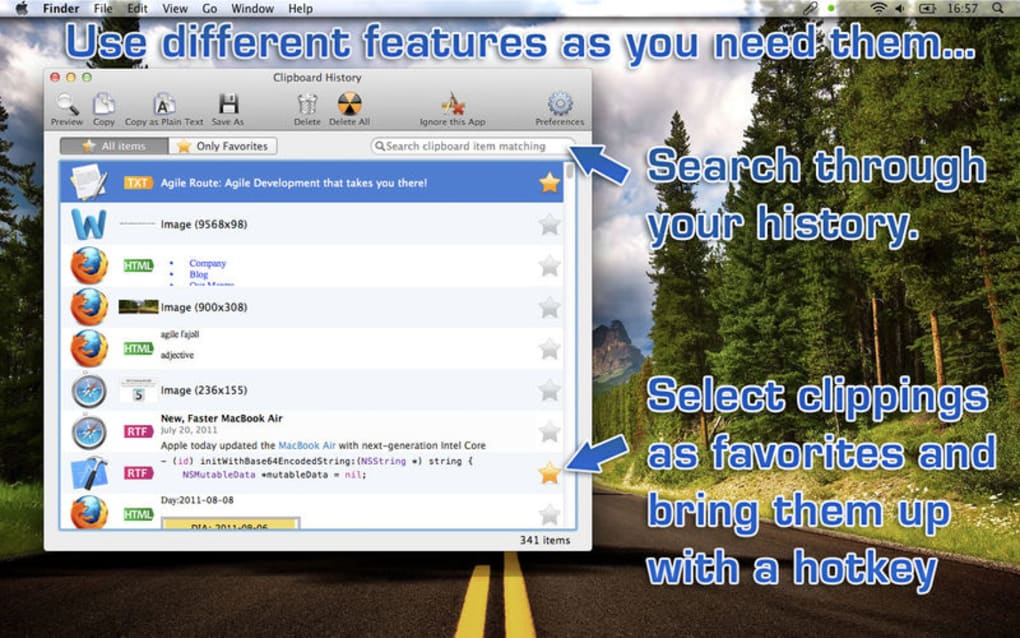
- Quick Search & Filters: Real‑time search bar with filters for text, images, and file types makes finding the right entry a breeze.
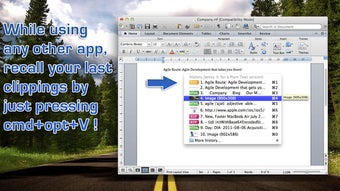
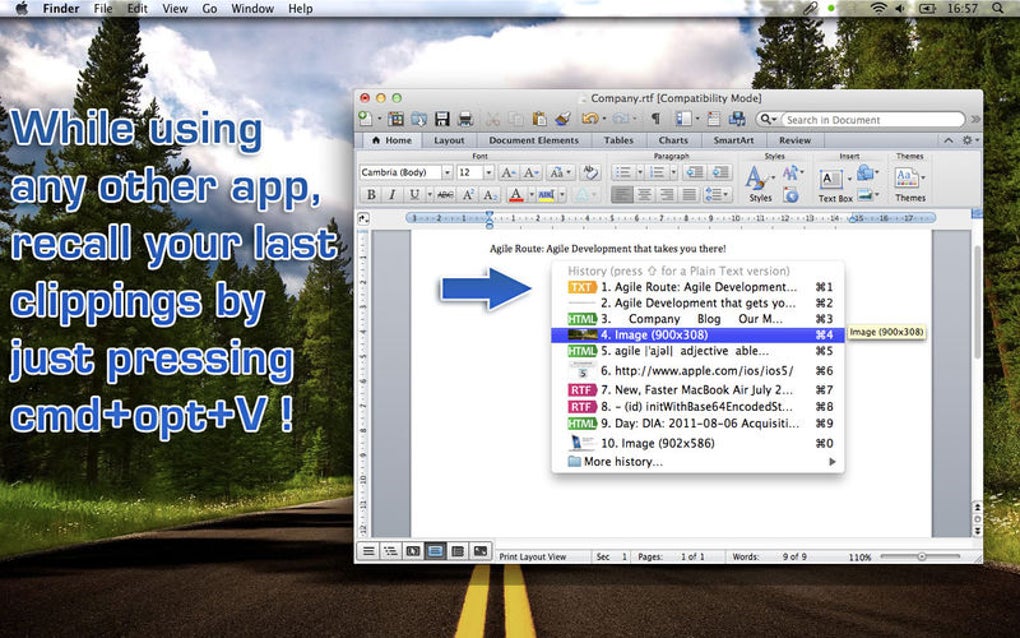
- Keyboard Shortcuts: Customizable hotkeys (e.g., Win+Shift+V) let you pull up the history window without leaving your current application.
- Pinning & Favorites: Mark frequently used snippets as favorites to keep them at the top of the list for instant access.
- Export & Import: Export your clipboard history to CSV or JSON for backup, and import previous backups when needed.
- Privacy‑First Design: All data is stored locally; no telemetry is sent unless you opt‑in to usage statistics.
- Cross‑Platform Support: Native builds for Windows 10/11, macOS 10.13+, Android 6.0+, and iOS 13+, all with a consistent UI.
- Auto‑Clear & Retention Policies: Set automatic cleanup rules (e.g., delete items older than 30 days) to keep the database lean.
- Lightweight Footprint: Uses less than 30 MB of RAM and a minimal CPU load, even when tracking high‑frequency copy actions.
Installation & Daily Workflow
Getting Clipboard History up and running is straightforward. For Windows users, download the .exe installer from the official website, run it, and follow the wizard prompts – the installer automatically creates a desktop shortcut and adds the app to the startup list, ensuring the clipboard monitor is active as soon as you log in. macOS users receive a signed .dmg file; simply drag the Clipboard History icon into the Applications folder, then grant the necessary Accessibility permissions in System Preferences so the app can read the system clipboard. Android users can install the APK from the Play Store or sideload it; after installation, enable the “Accessibility Service” permission to allow the app to monitor clipboard changes in the background. iOS users download the app from the App Store; a one‑time permission request lets the app access the clipboard when the app is in the foreground, and a widget can be added to the Today View for quick access.
Once installed, the first launch presents a concise onboarding screen that explains the main UI elements: the history list, the search bar, and the settings gear. By default, the app starts capturing immediately. To paste a previous entry, either click the desired item or use the assigned hotkey (e.g., Ctrl+Alt+V on Windows, Cmd+Shift+V on macOS).
The history window appears as a small overlay, keeping your workflow uninterrupted. Advanced users can create custom tags for each entry – for instance, “project‑X” or “client‑email” – which then appear as filter options in the search dropdown. The Settings panel, reachable via the gear icon, offers fine‑grained control over storage limits, hotkey assignments, and privacy options.
You can also enable “Sync to Cloud” if you prefer a secure encrypted backup across devices, though this feature remains optional.
Daily usage quickly becomes second nature. Imagine you’re drafting a lengthy support ticket: you copy a troubleshooting step, then later copy a troubleshooting URL, and finally copy a snippet of log output. All three items sit in your Clipboard History list, searchable by keyword.
When you need the URL again, just type “log” in the search bar, select the correct entry, and hit Enter – the text is instantly pasted into your ticket. The pinning feature ensures that a frequently used email template remains at the top of the list, eliminating the need to scroll through older items. For developers, the export function can dump the entire history to a JSON file, which can be version‑controlled alongside project documentation.
Compatibility, Pros & Cons, and Frequently Asked Questions
Supported Platforms: Clipboard History runs natively on Windows 10/11 (64‑bit), macOS 10.13+ (Intel & Apple Silicon), Android 6.0+ (ARM & x86), and iOS 13+ (iPhone & iPad). The application leverages each operating system’s native clipboard APIs, guaranteeing fast and reliable capture without the need for third‑party drivers.
Pros
- Zero‑cost, fully functional free version.
- Persistent history survives reboots and crashes.
- Highly customizable hotkeys and UI themes.
- Lightweight on system resources.
- Strong privacy stance – data never leaves the device unless you enable sync.
Cons
- Advanced tagging and cloud sync require a paid “Pro” upgrade.
- iOS version limited to foreground clipboard access due to OS restrictions.
- Initial onboarding may be overwhelming for users unfamiliar with clipboard managers.
Frequently Asked Questions
Can Clipboard History store images and rich text?
Yes. The app captures plain text, rich HTML, formatted Word snippets, and bitmap images. Each entry retains its original formatting, allowing you to paste exactly what you copied.
How much storage does the history use?
By default the app limits the database to 200 MB, which usually holds several thousand entries. You can adjust this limit in Settings, and enable automatic cleanup based on age or entry count.
Is my clipboard data sent to the cloud?
No. All data is stored locally on your device. Cloud sync is an optional, encrypted feature that you must enable manually, and it uses end‑to‑end encryption.
Can I export my clipboard history?
Yes. The Export function creates a CSV or JSON file containing every recorded entry, which you can import back into Clipboard History or analyze with external tools.
Does the free version have ads?
The free version is ad‑free. The only limitation is the absence of advanced tagging and cloud sync, which are reserved for the Pro subscription.
Conclusion & Call to Action
Clipboard History transforms a simple copy‑and‑paste workflow into a robust productivity engine. By preserving every clipboard entry, offering instant search, and providing powerful organization tools, it eliminates the common pain points of lost snippets and repetitive copying. Whether you’re a student, a remote worker, a developer, or anyone who deals with repetitive data entry, the free version delivers immediate value with no hidden costs or intrusive ads. For power users who need tagging, encrypted cloud backup, and priority support, the affordable Pro upgrade unlocks the full potential of the platform.
Ready to streamline your daily tasks? Download Clipboard History now and start building a searchable, persistent clipboard that works across Windows, macOS, Android, and iOS. Experience the difference of a truly reliable clipboard manager – your future self will thank you.
Pros: Persistent history, lightweight, cross‑platform, privacy‑focused.
Cons: Pro features behind a paywall, iOS limitations, learning curve for beginners.